

Canvas
Create and edit text documents, code, and spreadsheets
Canvas lets you create and edit documents directly in chat. The AI creates text documents, code files, and spreadsheets in a side panel where you can view, edit, and refine them.
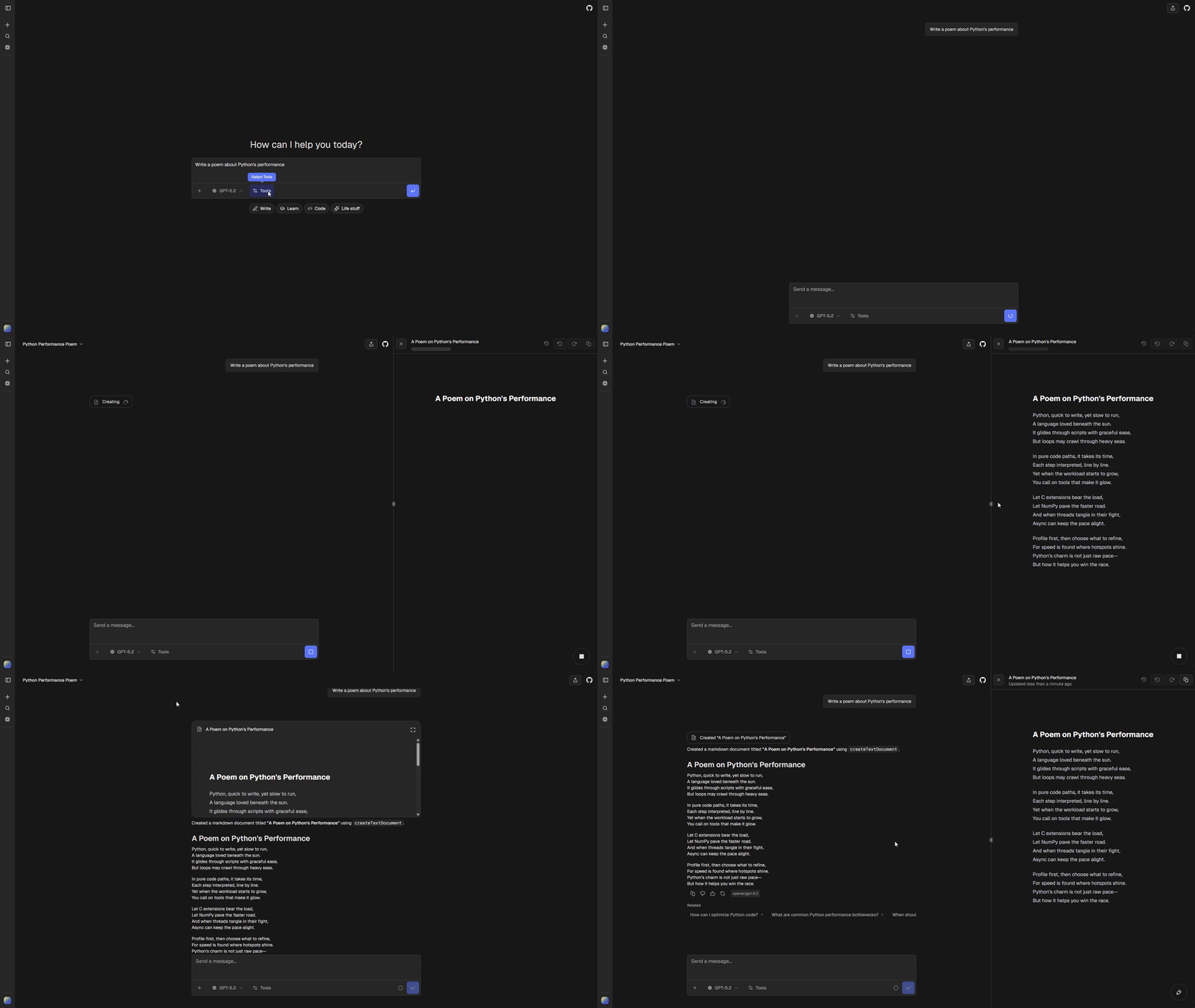
Canvas types
You can create three types of canvas:
| Type | Best for | Features |
|---|---|---|
| Text | Essays, emails, reports, documentation, and other written content | Markdown support, diff view, version history, direct editing, polish tool |
| Code | Python scripts, JavaScript, TypeScript, and other code files | Syntax highlighting, Python execution (via Pyodide), version history, console output |
| Sheet | Data tables, datasets, and CSV files | Spreadsheet editor, CSV export, data visualization via Python |
Creating a canvas
When you ask the AI to create something substantial, it automatically creates a canvas with the appropriate type. You can also request specific types:
- Text documents: “Write a professional email about…” or “Draft an essay on…”
- Code: “Create a Python script that…” or “Write a React component for…”
- Spreadsheets: “Create a spreadsheet with…” or “Build a data table for…”
The AI uses dedicated tools to create documents:
createTextDocumentfor markdown text contentcreateCodeDocumentfor code files (filename determines syntax highlighting)createSheetDocumentfor CSV-format spreadsheets
Editing documents
Direct editing
Click into any canvas to edit directly. Changes auto-save after you stop typing.
AI-assisted editing
Ask the AI to make changes and it will update the document:
- “Make this code more concise”
- “Fix the typos in this email”
- “Add a column for timestamps”
The AI reads the current document content before making edits to preserve context.
Version history
Every change creates a new version. Navigate between versions using the controls in the canvas header:
- Undo (left arrow): View the previous version
- Redo (right arrow): View the next version
When viewing an older version, a footer appears letting you return to the latest version.
Diff view (text only)
Text documents support a diff view that highlights additions and deletions between consecutive versions. Toggle diff view using the history icon in the canvas header.
Canvas toolbar
A floating toolbar appears at the bottom-right of the canvas. Each canvas type has different quick actions:
Text toolbar
- Add final polish: Checks grammar, adds section titles, improves readability
Code toolbar
- Add comments: Adds explanatory comments to the code
- Add logs: Adds debug logging statements
Sheet toolbar
- Format and clean data: Cleans and formats the spreadsheet data
- Analyze and visualize: Creates a Python code canvas with data analysis and visualization
Code execution
Python code can run directly in the browser using Pyodide. Click the Run button to execute.
Execution features:
- Console output displays below the code editor
- Matplotlib plots render as images in the console
- Package imports are loaded automatically
- Standard library only (no external dependencies)
Code execution is only available for Python files. The run button is disabled for other languages.
Canvas actions
Each canvas type has action buttons in the header:
All types
- Undo/Redo: Navigate version history
- Copy: Copy content to clipboard
Text only
- View changes: Toggle diff view comparing current and previous version
Sheet only
- Copy as CSV: Exports clean CSV (removes empty rows)
Configuration
Canvas is built into the chat interface. No additional configuration is required.